Don't wait to be proactive...


Monitor

12 posts

  • Monitoring additional DNS Record Types

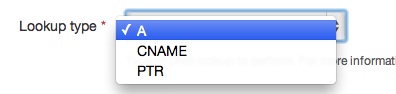
    A, CNAME, and PTR

    The first generation of our DNS monitor did simple A record queries. Good enough to get the basic records necessary for life on the Internet, and quickly we had many requests to expand the types of records available. Based on these requests we have added CNAME and PTR records to the DNS monitoring roster.

    qtypes

    Inspecting results

    We have also added a new option for DNS monitoring.

  • Microsoft Forefront and Mailive SMTP Monitoring

    Last night (Feb 25th, 2013) around 5pm Central time Microsoft’s Forefront service FPE changed its security policies and began blocking most Mailive! test messages.

    In the Forefront control panel it will be necessary to whitelist the sender mailive@knowledgefront.com or the IP Range where the test messages originate: 71.5.105.193 - 71.5.105.198 (netblock 71.5.105.192/29 or 71.5.105.192/255.255.255.248).

    If there are any questions or problems feel free to contact us and we will help out any way we can.

  • Monitoring Websites use Knowledge Front HTTP Monitor

    Using Knowledge Front’s HTTP monitoring service is a simple, reliable and trusted way to externally monitor your websites. Our clients use the HTTP monitor to keep a close watch on their businesses’ websites hosted in a variety of environments:

    • on-premise data centers
    • 3rd party colocation sites
    • PaaS providers such as Heroku and Google App Engine
    • IaaS providers such as Amazon EC2, Rackspace, and Linode

    Externally monitoring your websites provides insight into the responsiveness of your site from your customer’s perspective. The service provides the confidence in knowing that your support staff will immediately be notified of any service disruptions.

  • TLS Support for SMTP Monitoring

    Knowledge Front’s round trip SMTP monitoring, Mailive!, has been updated to support TLS (Transport Layer Security) when sending its test e-mails. Each SMTP monitor can be configured individually with one of three settings.

    On
    Delivery will always use TLS and record a failure if the STARTTLS command does not succeed or if the SMTP transmission fails to complete in any way.
    Auto
    When the SMTP session begins Mailive! sends the EHLO command to the SMTP server being tested and the response includes the capabilities of the SMTP Server. If STARTTLS is in the response then the test will attempt to use TLS and record a failure if the session breaks or the delivery does not succeed. If there is no STARTTLS then delivery happens the old fashioned way, with no encryption
    Off
    When sending a test e-mail Mailive! will never attempt to initiate TLS, even if advertised in the EHLO response of the receiving server.

    For newly added monitors the default will be Auto. Monitors already present in the system will have “Use TLS” set to Off to remain compatible with how it has been up to this point.

  • Mailive! SMS Alerting

    A short time ago Mailive! alerting was upgraded to use true SMS alerting versus sending text messages through the cell providers SMTP to SMS gateways (ie. 6125551212@txt.att.net) which had the possibility of being delayed on their gateway with no real quality of service guarantee.

    We have worked hard and to beef up our technology and are pleased to offer true SMS alerting as an added feature. So instead of

    Mailive! -> SMTP Gateway -> SMS Aggregator -> Your phone

  • Down-only Alerts

    It is not always desirable to receive both up and down notifications for each alert configured Mailive!. This is especially true when setting multiple alerts which are delivered to the same recipient.

    Simply check the Down Only option when configuring an alert and the system will only send the down notification. When the alert is reset no up alert will be sent, but is always recorded and displayed when viewing the event history.

  • Disabling Alerts

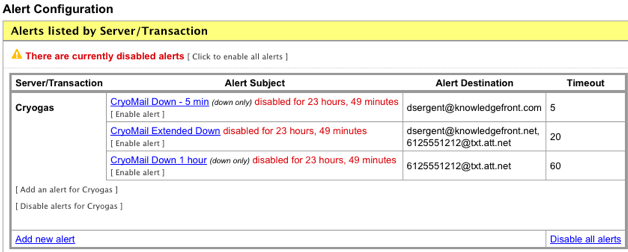
    When performing maintenance it is now easy to disable alerts for a specified period of time inside of Mailive! Simply go to Alert Configuration and there are options available to disable all alerts, disable alerts for a specific server, or disable a single alert.

    summary

    When disabling an alert it is possible to choose from several different timeframes. By using this method there will is no chance that the disabled alerts will be forgotten. Once the disabled time has expired alerts will automatically begin working again.

  • CSV Export

    Wanted to write a quick post to let everyone know that CSV export has been made available in Mailive!

    Now, while viewing a single server's report, the associated data used to generate the report is available for download. Simply click the Export this data as CSV link to retrieve the data and use in Excel or import into an internal system.

    We are constantly striving to improve Mailive!, so if there are any features or improvements you would like to see feel free to contact us and let us know. Thanks!

  • Trigger a Test

    A regularly requested feature for Mailive! has been put into place. Now, instead of needing to wait until the next automatic test is initiated by the system, users have the ability to trigger a test message whenever they like.

    Simply click the [ trigger test transaction ] while viewing the graph and history for the server and a test will be initiated immediately. This should make it much easier to catch errors in mail queues and follow logs while troubleshooting. It's fun and easy!

  • View SMTP Transcript

    Very often when diagnosing mail problems it is helpful to see exactly what SMTP responses are being generated for every step of the transaction. Frequently the root cause can be found by closely inspecting the responses from the HELO and RCPT TO portions of the SMTP conversation. Now Mailive! can help out.

    Recently Mailive! began recording outgoing SMTP sessions for all test messages the system sends. Now they can be viewed through the interface as shown here.

  • Mailive! updates

    Recently the Mailive! web site underwent a complete rewrite paving the way for future enhancements. The future is now and there have been several new features added in the last few weeks.

    Trigger test alert on request

    If you just entered a new alert and want to make sure the recipients and text all appear the way you want now you can trigger a test alert. After a new alert has been saved, or while editing an existing alert, pushing the "Test this alert" button will send both the Up and Down notifications for the alert. The messages will be recorded in the event history and prepend the subject with *TEST* making it clear this was not an actual alert.