
Don't wait to be proactive...


Alerting

5 posts

  • 10 Minute Guide to Sending Knowledge Front Alerts with PagerDuty

    Knowledge Front’s network monitoring service provides e-mail, SMS, and voice call alerting for your monitors… and it also hooks nicely into an alerting service like PagerDuty so that you can send alerts to your on-call technical staff.

    (note: this guide assumes you’re already using both Knowledge Front and PagerDuty services.)

    To start you’ll want to open up your web browser and load up a tab for your PagerDuty website and another for the Knowledge Front website… we’ll be flipping between the two a few times to get this integration rocking and tested.
  • Alerting Updates

    On Friday, January 7th at 7:00am (Central) there will be a couple of changes to Mailive! alerting.

    In the US and Canada SMS alerts coming from Mailive! will begin to be delivered from 1-952-314-5455. This is the same number currently used for voice call alerts. The short code 35842 will still be used for International SMS and as a backup for SMS alert delivery.

    Email alerts for Mailive! will now come from alert@knowledgefront.com instead of mailive@knowledgefront.com. This is to alleviate issues arising from using mailive@knowledgefront.com for both test messages and alerts. There is no change to the round trip test process - this is only for the alert messages.

  • Mailive! SMS Alerting

    A short time ago Mailive! alerting was upgraded to use true SMS alerting versus sending text messages through the cell providers SMTP to SMS gateways (ie. 6125551212@txt.att.net) which had the possibility of being delayed on their gateway with no real quality of service guarantee.

    We have worked hard and to beef up our technology and are pleased to offer true SMS alerting as an added feature. So instead of

    Mailive! -> SMTP Gateway -> SMS Aggregator -> Your phone

  • Down-only Alerts

    It is not always desirable to receive both up and down notifications for each alert configured Mailive!. This is especially true when setting multiple alerts which are delivered to the same recipient.

    Simply check the Down Only option when configuring an alert and the system will only send the down notification. When the alert is reset no up alert will be sent, but is always recorded and displayed when viewing the event history.

  • Disabling Alerts

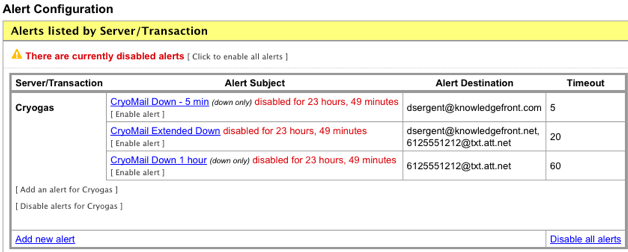
    When performing maintenance it is now easy to disable alerts for a specified period of time inside of Mailive! Simply go to Alert Configuration and there are options available to disable all alerts, disable alerts for a specific server, or disable a single alert.

    summary

    When disabling an alert it is possible to choose from several different timeframes. By using this method there will is no chance that the disabled alerts will be forgotten. Once the disabled time has expired alerts will automatically begin working again.